MyNextBreak
MyNextBreak (iOS)
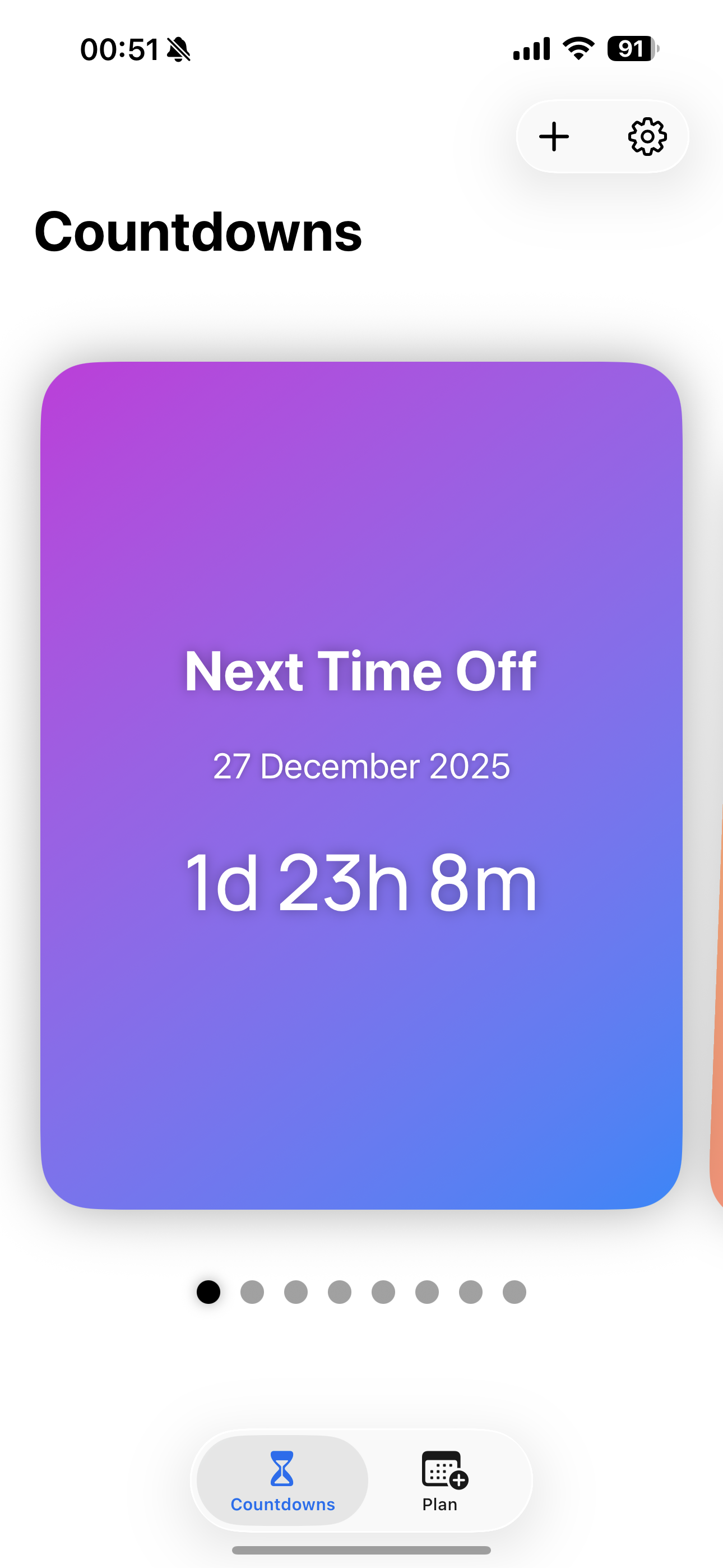
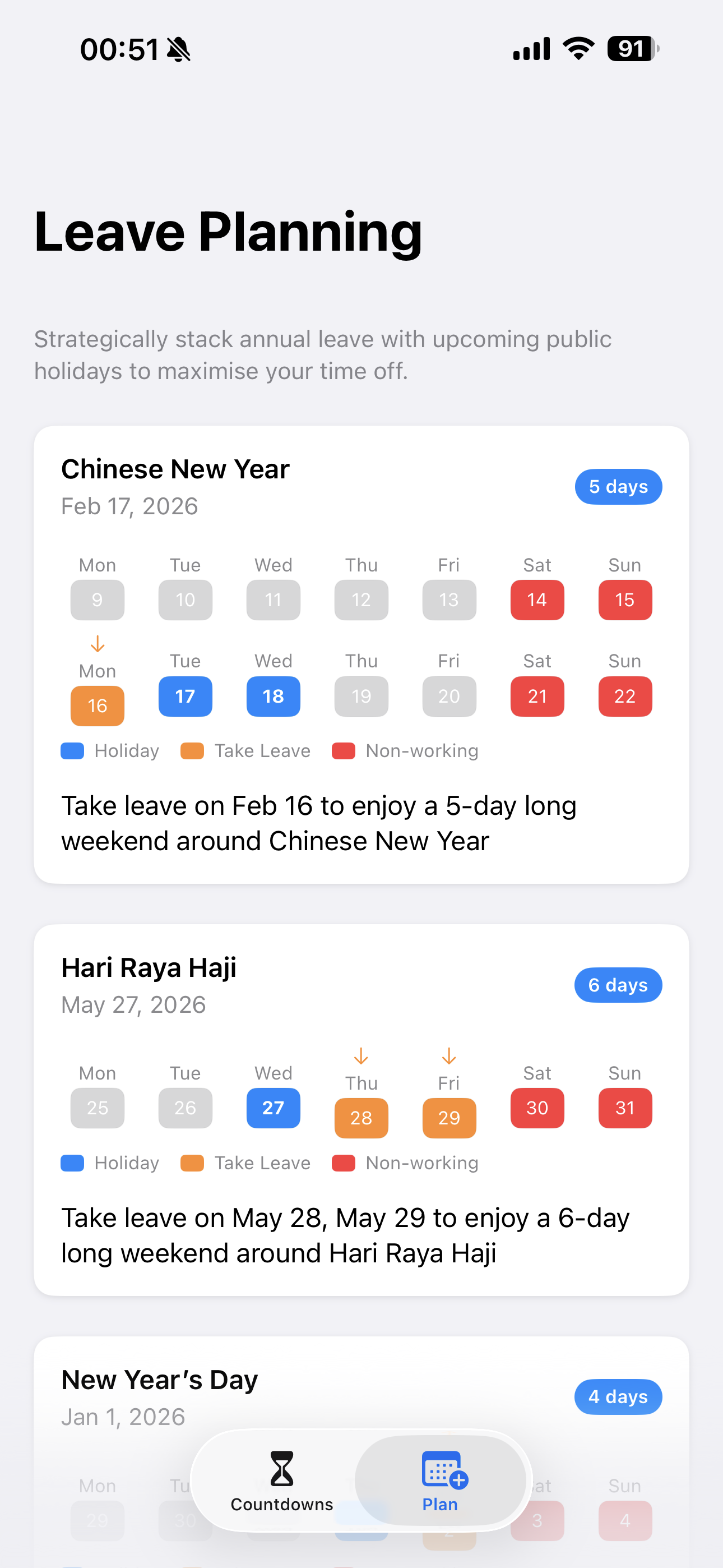
MyNextBreak is a SwiftUI app for Singapore that helps you answer one question fast: when’s my next break? It tracks your next time off, the next public holiday, and the next long weekend — and it includes a leave‑planning view that suggests when to take 1–2 days of annual leave to create 4+ day breaks.
App Store
Download on the iOS App Store: https://apps.apple.com/sg/app/mynextbreak/id6753747946
Screenshots
Features
- Countdowns tab
- Swipeable, gradient countdown cards with page indicators
- Smart “Next Time Off” card (uses your working‑days schedule; optionally includes public holidays)
- “Next Public Holiday” and “Next Long Weekend” countdowns (Singapore calendar + timezone)
- Custom countdowns
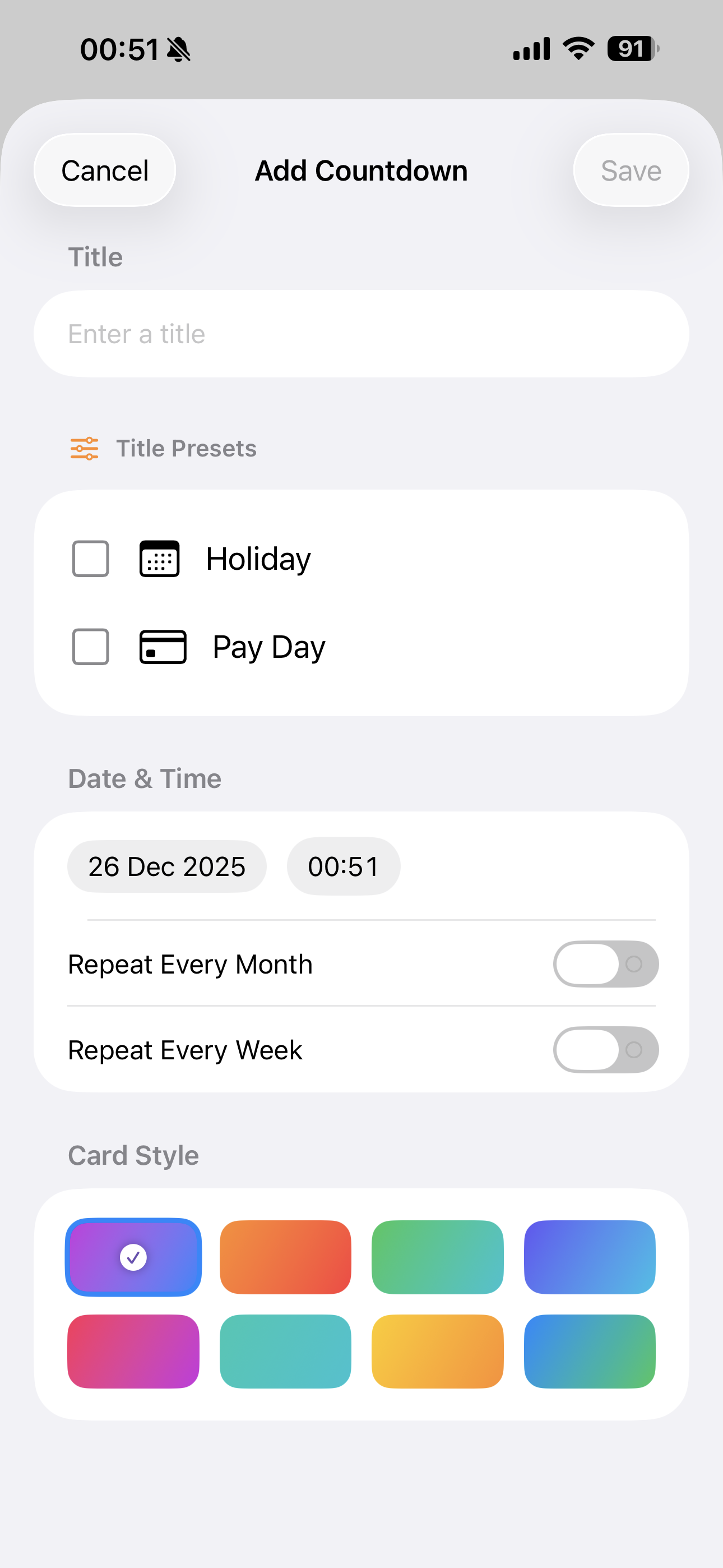
- Create unlimited personal countdowns (e.g., Holiday, Pay Day)
- Monthly repeat (choose day of month) or weekly repeat (choose weekday + interval)
- Edit and delete countdowns; pick a card style/gradient
- Leave planning
- Recommendations around upcoming public holidays (aims for 4+ consecutive days off using up to 2 leave days)
- Handles practical rules like Sunday holidays observed on Monday and avoiding Saturday holidays when Saturday is already non‑working
- Home screen widget (WidgetKit)
- Small + medium widget that shows the countdown you picked in‑app
- Supports default countdowns (Next Time Off / Next Public Holiday / Next Long Weekend) and any custom countdown
- Offline-first holiday data
- Downloads Singapore public holiday datasets and caches them on-device
- Shows download status (years + last updated) and lets you refresh manually
- First‑run setup + settings
- Choose working days (Mon–Sun) on first launch; adjust any time in Settings
- Toggle whether public holidays count as “Next Time Off”
- Option to redo the initial setup flow
Requirements
- Xcode 15+
- iOS 17.0+ (iPhone + iPad)
Getting Started
- Open
MyNextBreak.xcodeprojin Xcode. - Select the
MyNextBreakscheme and a simulator/device. - Build and run, then complete the working‑days setup.
No third‑party Swift Package dependencies are required.
Widget Setup (Dev Notes)
The widget and app share data via an App Group.
- App Group ID is defined in
Models/WidgetCountdownConfig.swift(WidgetConstants.appGroupId) and must match:MyNextBreak.entitlementsCountdown App WidgetExtension.entitlements
- In-app: Settings → Widget → “Choose Widget Countdown”, then add the widget from the iOS home screen.
How Holiday Data Works
- Source: data.gov.sg public holiday datasets (downloaded per-year as needed).
- Caching: stored in the app’s Documents directory as
holidaysYYYY.jsonand merged on load. - Timezone: all date calculations use
Asia/Singaporeto avoid “midnight drift”.
Project Structure (High-Level)
- App entry:
HolidayCountdownApp.swift - Countdowns:
Views/ContentView.swift,Views/CountdownPagesView.swift,Views/CountdownCard.swift - Setup/settings:
Views/SetupView.swift,Views/SettingsView.swift - Custom countdowns:
Views/AddCountdownView.swift,Views/EditCustomCountdownView.swift,Models/CustomEvent.swift,Models/CustomEventStore.swift - Leave planning:
Views/PlanView.swift,Models/LeaveRecommendation.swift - Holidays + caching:
Models/HolidayStore.swift,Models/HolidayDownloader.swift,Models/HolidayService.swift,Models/HolidayAPI.swift - Widget:
CountdownWidget/CountdownWidget.swift, shared data inModels/WidgetCountdownConfig.swift
Privacy
- No analytics, ads, tracking, or accounts.
- Data stays on-device (working-days preference, cached holiday datasets, custom countdowns).
- Network access is only used to download public holiday datasets from data.gov.sg.
- Full policy:
privacy-policy.html
Acknowledgements
- Public holiday data courtesy of data.gov.sg
- Manrope typeface by Michael Sharanda (SIL Open Font License 1.1)